_______________________________________________________________ NeoBux Banner
Showing posts with label UnionBank. Show all posts

September 22, 2008

How to Deposit Over-the-Counter (for Your UnionBank’s EON CyberAccount)?

The only reason while you will ever go to the branch is to make cash/check deposits to your EON account. You don't even have to go to the branch at regular banking hours. You can make your deposit via the UnionBank ATM. So, you can make your deposit anytime you want!

Deposits may be processed at any UnionBank branch.

  1. Fill out the deposit slip at the branch counter.


  2. Give your deposit (cash/check) and the deposit slip to the UnionBank teller.


  3. Make sure you get your receipt when you're done.


RELATED ARTICLES:

September 21, 2008

How to Deposit Via ATM (for Your UnionBank’s EON CyberAccount)?

ATMs (automatic teller machines) give you 24-hour access to your various banking accounts. Aside from using the ATM for withdrawing money, you can also use it for making a deposit. Here's how to do it:

1. Check with the bank regarding deposit slip requirements for ATMs.


2. Fill out your deposit slip. Put your money and deposit slip in the special ATM deposit envelopes provided by the bank. You can find these envelopes in holders beside the ATM, or you can go inside the bank during business hours to pick some up. Keep some on hand at home in case you ever want to deposit after business hours. Some holders do run out.


3. Seal the envelope. Write the amount you are depositing, your name and account number on the front.


4. Insert your EON card into the ATM and enter your PIN. Select "Deposit" and choose savings account. Punch in the amount you are depositing and the numbers written in your deposit envelope, and then press "Enter."


5. Slide your envelope in the special deposit slot that automatically will open. Don't fold your envelope. The bank knows that the envelope belongs to you and your account because you put in your ATM card and PIN. The ATM prints a special code on the envelope that associates it with your account.


6. Finish your session by telling the machine if you want another transaction. Wait for your ATM card and receipt.


RELATED ARTICLES:

September 20, 2008

How to Enroll a UnionBank Card for Online Use?

REQUIREMENTS:

  • A UnionBank ATM or E-on CyberAccount Debit card
  • An ATM PIN
  • Internet Connection (Internet Explorer version 6.0 or higher)


ENROLLMENT:

Before you can use online banking, the first thing you'll have to do is enroll your accounts via the UnionBank online enrollment form.
To access the enrollment form, click here then follow the four easy steps to enrollment:
  1. Validate your ATM card number and PIN
  2. Nominate a user ID
  3. Confirm your User ID
  4. Complete the enrollment form

You’re done. You will reach a confirmation screen signifying that your application has been received and can log-in 48 hours later.


LOGGING-IN:

To log-in, follow these steps:
  1. Go to the log-in page.
  2. Enter your User ID and ATM PIN.
  3. Start banking online!


RELATED ARTICLES:

September 19, 2008

How to Open UnionBank’s EON CyberAccount?

1. Fill out a UnionBank EON CyberAccount Application form.

  • You can fill one out at the nearest UnionBank branch or
  • Fill out our online form here.


2. Claim your EON VISA Electron Kit from the branch you selected:


  • Prepare (at least two) valid Identification Cards
    • Passport
    • Current Driver's License (accompanied by OR)
    • Professional Regulation Commission (PRC) ID
    • Major Credit Cards with picture
    • Permit to Carry Firearms
    • New/Laminated Social Security System (SSS) / Government Services Insurance System (GSIS) / Tax Identification Number (TIN) Card
    • Company ID
    • Postal ID
    • Current School ID (for students only)

  • Make photocopies of the Identification Cards you will present. This will save time in the release of your Welcome Kit (just in case the photocopier/scanner in the branch is busy/unavailable). They need to keep these on file.


  • Make a personal appearance (to verify the validity of the files you submitted and to minimize fraud).

  • Bring Php350.00 to cover the Visa electron annual fee.


    • Note: Please bring a refundable deposit of at least Php100.00 (or $1.95 equivalent) so you can verify your PayPal account.
    • Therefore, you must bring a total of Php450.00 to open an account.


RELATED ARTICLES:

What is UnionBank’s EON CyberAccount?

The EON CyberAccount is UnionBank's internet-based deposit account. It allows you to do absolutely all your banking transactions in a click of a mouse. You can even make electronic fund transfers to any bank in the country -- anytime, anywhere

The EON CyberAccount is able to provide you with cutting edge features never before possible in the history of Philippine banking.

Use your EON CyberAccount card instead of cash or checks to pay for purchases worldwide. Visa debit makes shopping fast, convenient and safe. Visa debit cards are accepted at up to 27 million locations worldwide, giving you purchasing power whether you are at home or traveling. You can use your EON Visa Electron card to get cash at more than 1 Million PLUS /ATMs worldwide.


Why Open UnionBank’s EON CyberAccount?


Here are some of the benefits of opening a UnionBank’s EON CyberAccount:

  • It’s the fastest, most convenient way to bank! No branches. No passbooks or checkbooks. No transaction slips. No time wasted. Do your banking transaction in 60 seconds at home, or anywhere in the world where you have internet access.


  • It is a simple, convenient, worry-free account. Best of all, NO monthly maintenance fees or minimum balance to maintain!


  • Transfer funds from your EON account to another UnionBank account or any other bank account in the Philippines. EON is the country's first electronic fund transfer facility among other banks. All you need to do is specify the Bank, the Beneficiary or Account Holder's Name and his/her Account Number and you're all set!


  • Write Cyberchecks - another breakthrough in Philippine banking! Write your cyberchecks online - to anyone, anywhere in the country. Your CyberCheck will even be delivered to your payee's doorstep. You may even ask your payee to pick up your check in selected UnionBank branches nationwide.


  • Pay your bills online! Just enter your billing details - the corresponding reference number and the amount to be paid. You will receive a confirmation number as your receipt for every payment made.


  • Shopping at home or at locations around the world has never been easier. With an EON Visa Electron card purchase, the payment is automatically debited directly from your bank account. Your online banking statement then provides you with a record of all your EON Visa Electron card purchases, making it easier for you to manage your expenses.


  • Make balance inquiries and get account summaries - including transaction details. Monitoring your account has never been this easy.


RELATED ARTICLES:

September 15, 2008

How to Transfer Payment from PayPal Balance to Your UnionBank’s EON CyberAccount?

1. Once the payment has reflected in your Paypal balance, you can transfer the funds to your UnionBank Debit card by using the withdrawal feature. Please take note, there is a minimum withdrawal limit depending on the currency which you want to withdraw. For US Dollars it is $10.00.

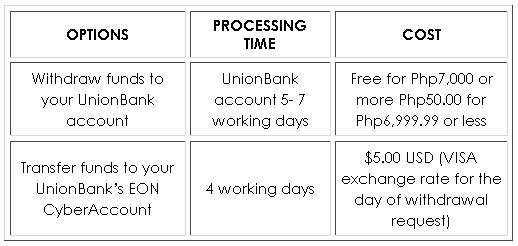
2. You will be given 2 options in withdrawing your funds. Please choose the "transfer funds to your card" option. Paypal charges $5.00 USD for this facility. Then confirm the transfer.

3. The transfer to your UnionBank Debit card will be completed within 4 working days from the date of your withdrawal request. A status report of your withdrawal request is reflected in your Account Overview screen.

4. Your funds will be converted to the peso equivalent using the VISA Exchange rate for the day of the withdrawal request.


How to Withdraw Payment from PayPal Balance to Your UnionBank Account?

1. Log into your PayPal account. Click "My account" tab and then "Withdraw" sub tab

2. Select the "Withdraw funds to your bank account option" (See fees below)

3. Select the bank account and amount to withdraw

4. Confirm the transfer


  • Please note the terms and conditions of Paypal concerning the frequency of payment acceptance. Personal Accounts can only accept payments monthly and up to 5 credit or debit card payments annually with your Personal account. Premier Accounts allow you to accept credit or debit card payments for only 3.4% plus $0.30 USD per transaction.
  • FULL USE: Limits shall be based on the available balance for debit cards and the available credit limits for credit cards or other limits imposed by PayPal or the bank.
  • For regular enrollment, you have a limit of $100.00 for every transaction. With the expanded use number, you will have a $500.00 limit for every transaction with UnionBank's VISA Cards!


How Much is the Cost for PayPal Balance Transfer?


RELATED ARTICLES:

September 14, 2008

How to Become PayPal Verified via UnionBank’s EON CyberAccount?

Disclaimer: As of writing, I have made this tutorial for illustration purposes only. The images below may not be the same with PayPal’s actual site. PayPal reserves the right to amend, update or change the site’s layout at any time.


1. Log into your PayPal account. Click "Profile" tab and then click "Bank account."


2. Add bank details. The bank code number of UnionBank is 010419995.
(Please take note that your first name and surname on your Paypal account must match the name of your bank account. If it does not, the withdrawal request will be rejected by UnionBank.)


3. Review your bank account information.

4. Confirm your account.


I wish you good luck and great earnings!


RELATED ARTICLES:


SUBSCRIBE TO MY FEED

Subscribe in a reader

Enter your email address:

Delivered by FeedBurner